Developer Guide
- Acknowledgements
- Setting up, getting started
- Design
- Implementation
- Documentation, logging, testing, configuration, dev-ops
- Appendix: Requirements
- Appendix: Instructions for manual testing
- Appendix: Effort
Acknowledgements
Third party Libraries Used:
OpenAI’s ChatGPT (GPT-5) was used by Derek Qua to help refine code quality, improve documentation clarity, and verify certain implementation details. All AI-generated suggestions were reviewed and adapted to ensure they align with the project’s requirements and coding standards.
Credits Adapted ideas:
-
Cross Platform Launching
- Note: JavaDoc Headers were not provided by the original credited author, but by the developer (MoshiMoshiMochi) implementing this. Hence, these documentations may not be exactly what the original author envisioned.
- Autocomplete: Trie Data Structure
- Adapted from a symbol table of key-value pairs to a simpler implementation that only intends to check presence of words with prefixes.
Setting up, getting started
Refer to the guide Setting up and getting started.
Design
 Tip: The
 .puml files used to create diagrams are in this document docs/diagrams folder. Refer to the PlantUML Tutorial at se-edu/guides to learn how to create and edit diagrams.
Architecture
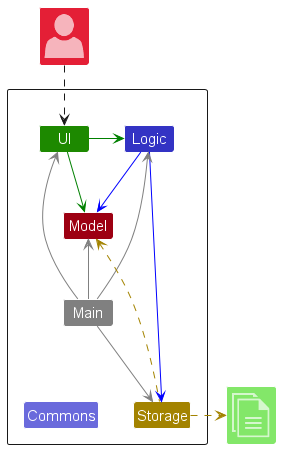
The Architecture Diagram given above explains the high-level design of the App.
Given below is a quick overview of main components and how they interact with each other.
Main components of the architecture
Main (consisting of classes Main and MainApp is in charge of the app launch and shut down.
- At app launch, it initializes the other components in the correct sequence, and connects them up with each other.
- At shut down, it shuts down the other components and invokes cleanup methods where necessary.
The bulk of the app’s work is done by the following four components:
-
UI: The UI of the App. -
Logic: The command executor. -
Model: Holds the data of the App in memory. -
Storage: Reads data from, and writes data to, the hard disk.
Commons represents a collection of classes used by multiple other components.
How the architecture components interact with each other
The Sequence Diagram below shows how the components interact with each other for the scenario where the user issues the command delete 1.
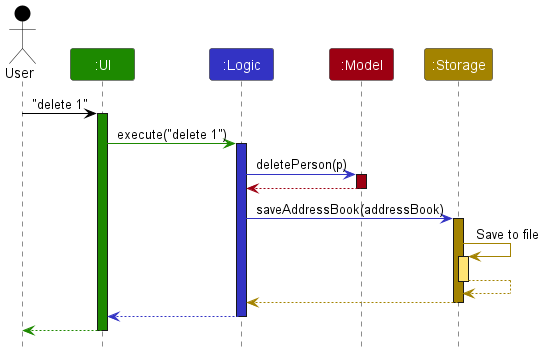
Each of the four main components (also shown in the diagram above),
- defines its API in an
interfacewith the same name as the Component. - implements its functionality using a concrete
{Component Name}Managerclass (which follows the corresponding APIinterfacementioned in the previous point.
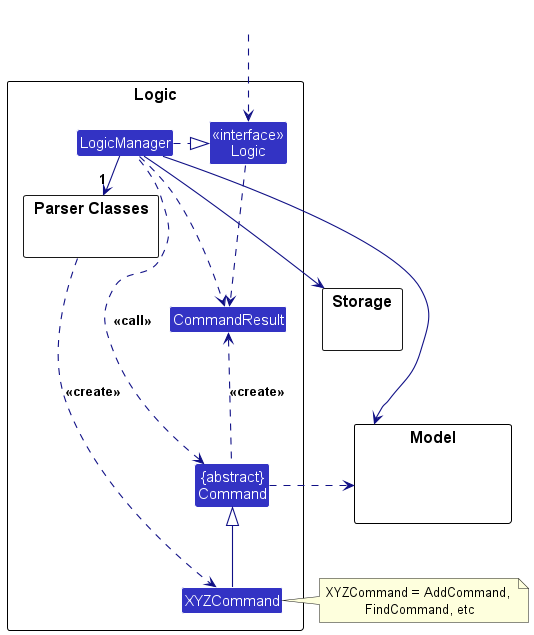
For example, the Logic component defines its API in the Logic.java interface and implements its functionality using the LogicManager.java class which follows the Logic interface. Other components interact with a given component through its interface rather than the concrete class (reason: to prevent outside component’s being coupled to the implementation of a component), as illustrated in the (partial) class diagram below.
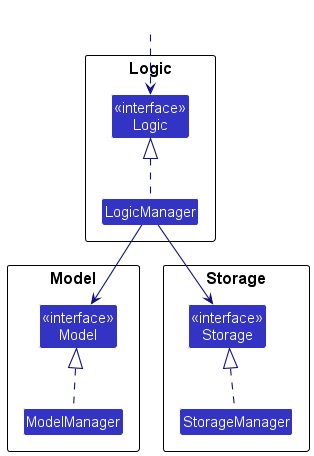
The sections below give more details of each component.
UI component
The API of this component is specified in Ui.java
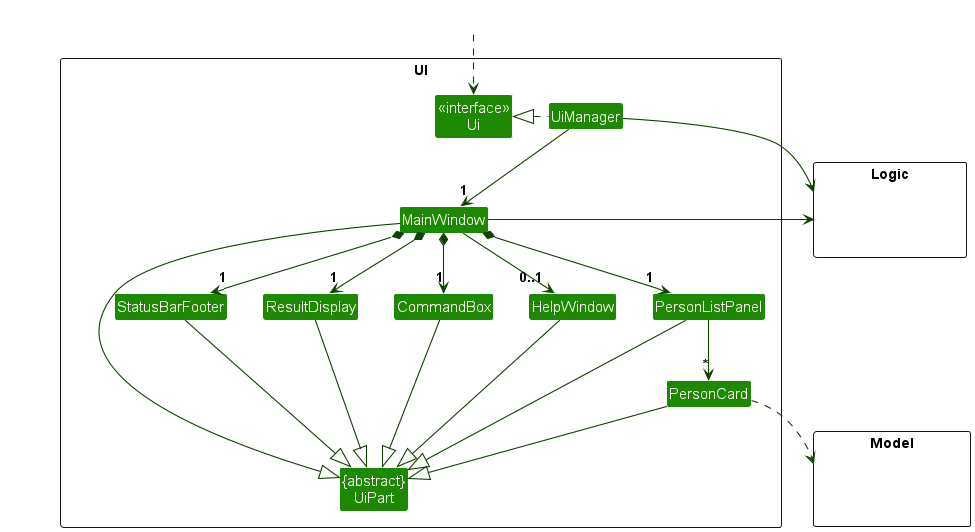
The UI consists of a MainWindow that is made up of parts e.g.CommandBox, ResultDisplay, PersonListPanel, StatusBarFooter etc. All these, including the MainWindow, inherit from the abstract UiPart class which captures the commonalities between classes that represent parts of the visible GUI.
The UI component uses the JavaFx UI framework. The layout of these UI parts are defined in matching .fxml files that are in the src/main/resources/view folder. For example, the layout of the MainWindow is specified in MainWindow.fxml
The UI component,
- executes user commands using the
Logiccomponent. - listens for changes to
Modeldata so that the UI can be updated with the modified data. - keeps a reference to the
Logiccomponent, because theUIrelies on theLogicto execute commands. - depends on some classes in the
Logiccomponent, because launching communication mode application throughUIrelies onApplicationLinkLauncherto execute action. - depends on some classes in the
Modelcomponent, as it displaysPersonobject residing in theModel. - depends on the
AutocompletorinLogicto provide suggestions while the user is typing. - Keeps a reference to a
ReadOnlyCommandHistoryfor use in accessing command history in theCommandBox
Logic component
API : Logic.java
Here’s a (partial) class diagram of the Logic component:
The sequence diagram below illustrates the typical interactions within the Logic component, taking execute("edit 1 n/Adam") API call as an example.
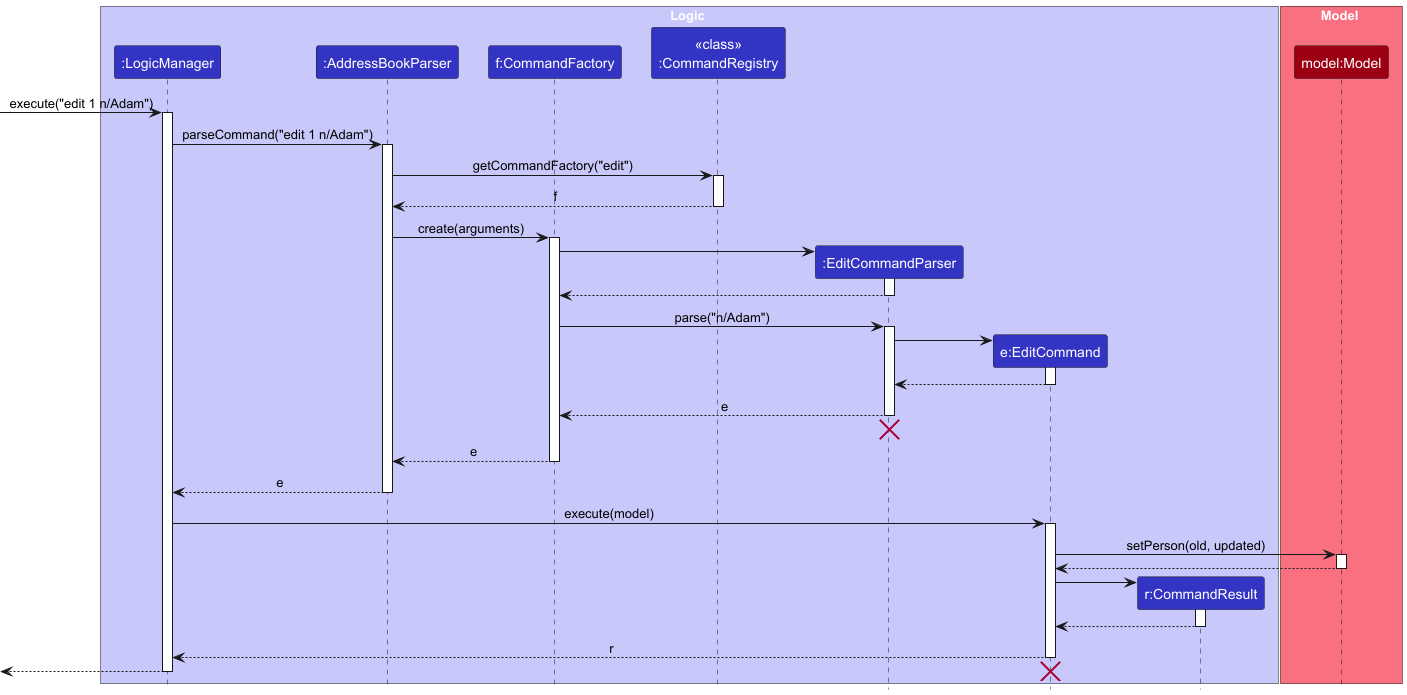
 Note: The lifeline for
 EditCommandParser and EditCommand should end at the destroy marker (X) but due to a limitation of PlantUML, the lifeline continues till the end of diagram.
How the Logic component works in a typical case:
- When
Logicis called upon to execute a command, it is passed to anAddressBookParserobject. - The
AddressBookParsercalls upon theCommandRegistryto obtain aCommandFactorythat creates a Command. - The
AddressBookParsersupplies the parsed arguments to theCommandFactory, which in turn uses theEditParser. - This results in a
Commandobject (more precisely, an object of one of its subclasses e.g.,EditCommand) which is executed by theLogicManager. - The command can communicate with the
Modelwhen it is executed (e.g. to edit a person).
Note that although this is shown as a single step in the diagram above (for simplicity), in the code it can take several interactions (between the command object and theModel) to achieve. - The result of the command execution is encapsulated as a
CommandResultobject which is returned back fromLogic.
State Management
The Logic component additionally relies on State to chiefly manage Confirmation prompts for some commands. In these cases, the components interact like so:
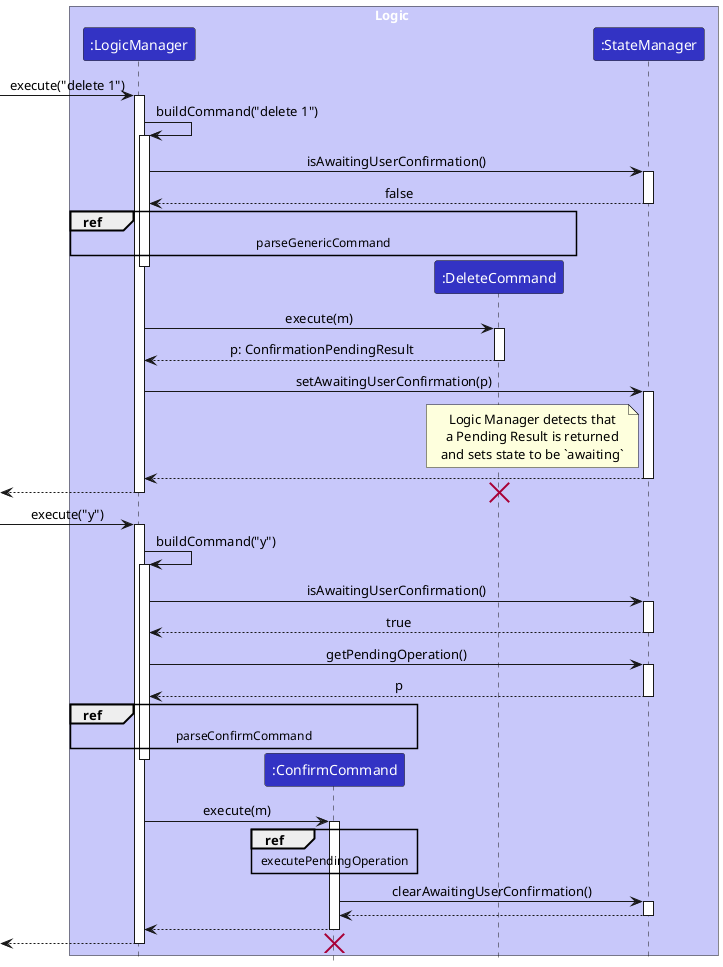
Note: DeleteCommand and ConfirmCommand are both created in the respective ref frames directly above them. PlantUML does not allow for the object to be created in the frame.
How Logic manages State:
- Before parsing a Command, LogicManager checks its
Stateto see if there is an operation pending confirmation. - If there is no pending operation, the Logic Manager parses the input as per normal.
- If there is a pending operation,
LogicManagercalls uponAddressBookParserto strictly parse the input as aConfirmCommand.ConfirmCommandwill clearStatevia a callback once satisfied. - After execution of a command, if the command returns a
ConfirmationPendingResult, the LogicManager sets theStateto await for the user’s confirmation
Parsing
Here are the other classes in Logic (omitted from the class diagram above) that are used for parsing a user command:
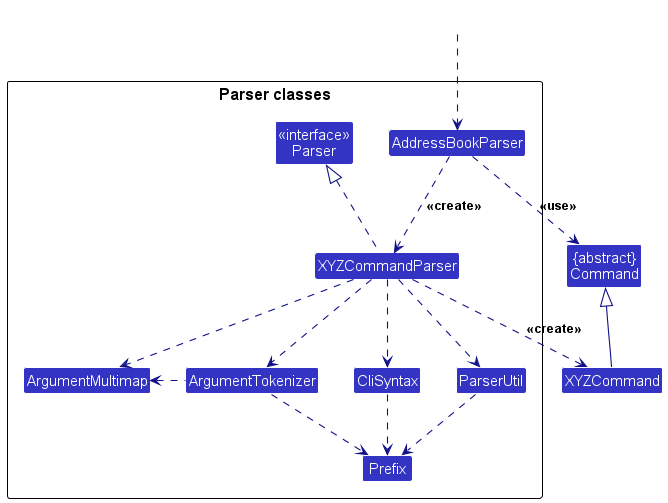
How the parsing works:
-
When called upon to parse a user command, the
AddressBookParserclass queriesCommandRegistryto find the appropriateCommandFactoryinstance that creates the correspondingXYZCommandParserclass. (XYZis a placeholder for the specific command name e.g.,AddCommandParser) Once found, theCommandFactoryinstance creates theXYZCommandParserclass which uses the other classes shown above to parse the user command and create aXYZCommandobject (e.g.,AddCommand) which theAddressBookParserreturns back as aCommandobject. -
All
XYZCommandParserclasses (e.g.,AddCommandParser,DeleteCommandParser, …) inherit from theParserinterface so that they can be treated similarly where possible e.g, during testing.
Utility Classes
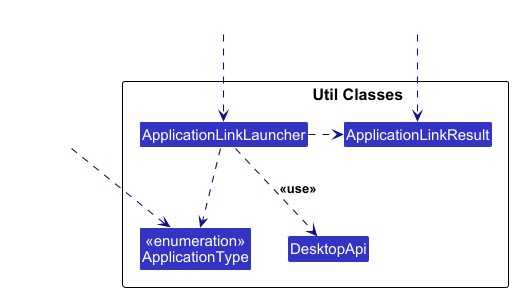
How the utility classes work:
- Currently utility classes are only used by
PersonCard,LaunchCommand,LaunchCommandParserandMainWindow -
LaunchCommandParseruses onApplicationTypeto decide how it createsLaunchCommand - When called upon by either
LaunchCommandorPersonCard,ApplicationLinkLauncheruses theApplicationTypeand attempts to launch the communication mode through the useDesktopApi. - Based on the success of the
DesktopApilaunch attempt,ApplicationLinkLauncherwill return with create and return the appropriateApplicationLinkResult.
How the Components work together (Find Command)
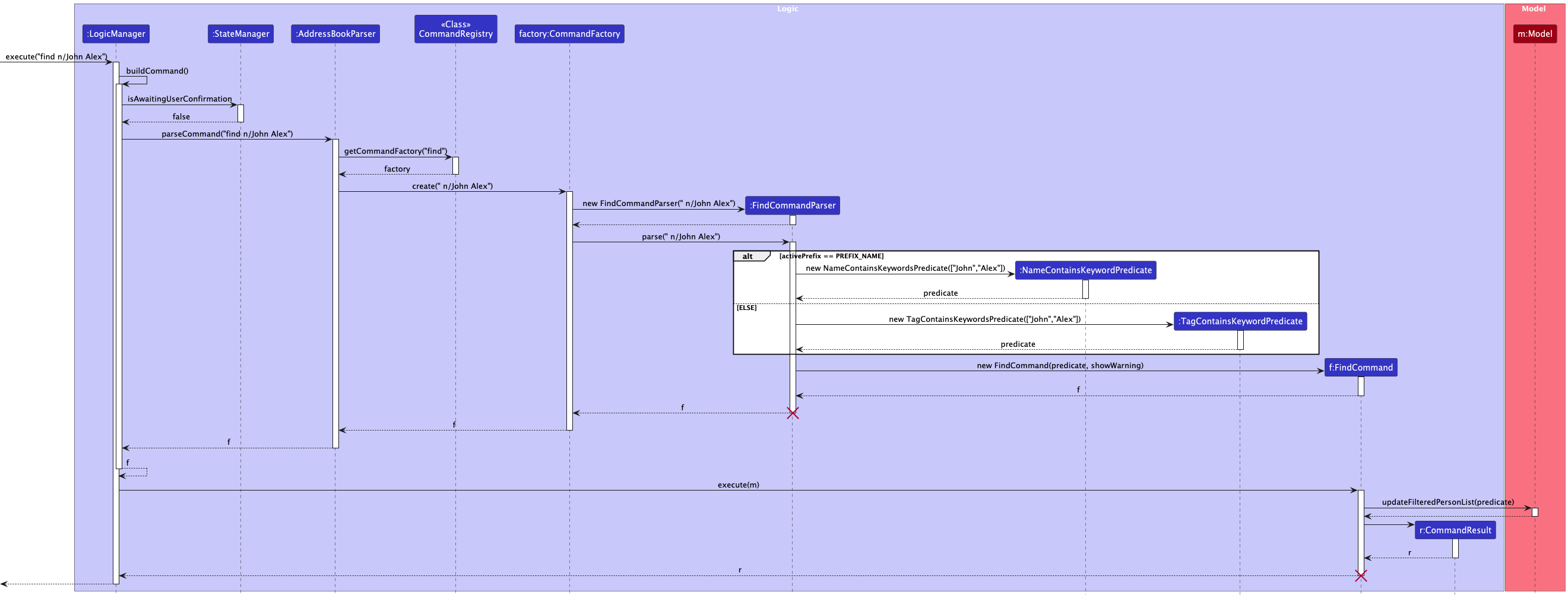
The sequence diagram below shows the full execution of the FindCommand in the Logic component.
Model component
API : Model.java
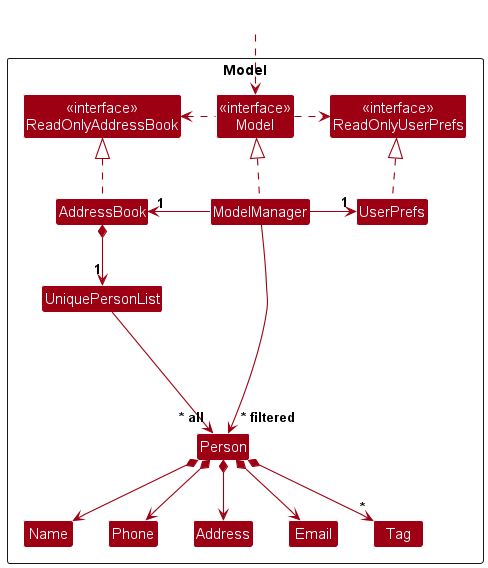
The Model component,
- stores the address book data i.e., all
Personobjects (which are contained in aUniquePersonListobject). - stores the currently ‘selected’
Personobjects (e.g., results of a search query) as a separate filtered and sorted list which is exposed to outsiders as an unmodifiableObservableList<Person>that can be ‘observed’ e.g. the UI can be bound to this list so that the UI automatically updates when the data in the list change. - stores a
UserPrefobject that represents the user’s preferences. This is exposed to the outside as aReadOnlyUserPrefobjects. - does not depend on any of the other three components (as the
Modelrepresents data entities of the domain, they should make sense on their own without depending on other components)
Note: An alternative (arguably, a more OOP) model is given below. It has a Tag list in the AddressBook, which Person references. This allows AddressBook to only require one Tag object per unique tag, instead of each Person needing their own Tag objects.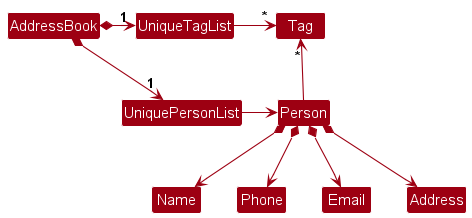
Storage component
API : Storage.java
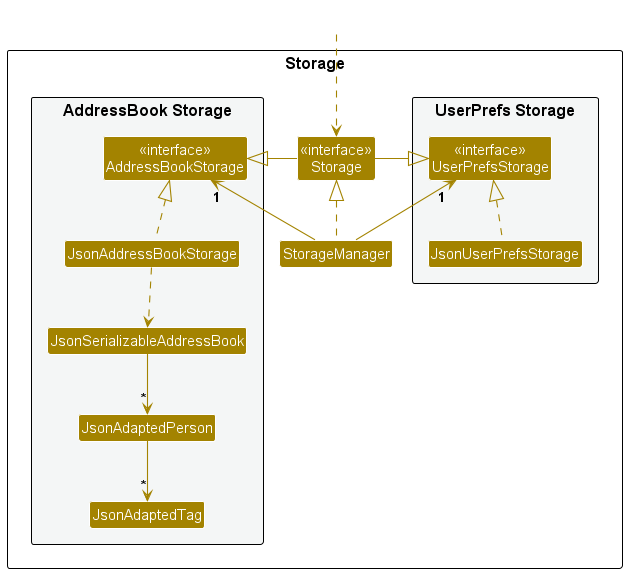
The Storage component,
- can save both address book data and user preference data in JSON format, and read them back into corresponding objects.
- saves command history in newline-delimited format, and provides a read-only view of it to the UI.
- inherits from both
AddressBookStorageandUserPrefStorage, which means it can be treated as either one (if only the functionality of only one is needed). - depends on some classes in the
Modelcomponent (because theStoragecomponent’s job is to save/retrieve objects that belong to theModel) - includes a
CsvAddressBookStorageclass that theModelholds a reference to to export data.
Common classes
Classes used by multiple components are in the seedu.address.commons package.
Implementation
This section describes some noteworthy details on how certain features are implemented.
Sort List Feature
Overview
The sort list feature is an enhancement to the original list feature. Through specifying a flag, the user can sort and display the entire list by either alphabetical or recent order. This feature improves the navigability of large address books by allowing users to quickly locate contacts in a preferred viewing order, without altering the underlying data structure or saved order of entries.
Rationale
As the original list feature only allowed listing of first to last added, the Sort List feature adds value by providing users with greater flexibility and control over how information is displayed. Users often have different priorities, some may want to find contacts alphabetically for quick reference, while others may prefer viewing their most recently added or edited contacts first.
This feature addresses both needs without requiring separate commands or manual filtering. By keeping the sorting operation view-based rather than data-based, the system maintains data integrity while enhancing the user experience, efficiency, and readability of the contact list.
Design Considerations
-
Not Updating the Underlying List: The sorting operation is non-destructive. Hence, it only affects how contacts are displayed in the UI or output, not the actual order stored in the internal data structure. This preserves consistency across sessions and ensures that subsequent commands (like edit, delete, etc.) continue to operate on the same underlying list indices.
-
Extensibility for Future Sorting Criteria: The design allows for future expansion of sorting options, such as sorting by tag, company, or custom user-defined fields. By abstracting the sorting logic into a reusable comparator-based utility, new sorting flags can be easily integrated without altering the command’s core structure.
Implementation Details
-
Command Flag Parsing:
ListCommandParserdetects optional flags (e.g.,-aor-r) and passes the corresponding sorting mode to theListCommand. -
Using Sorted List: The implementation leverages JavaFX’s
SortedListto dynamically sort the existing observable list of contacts without modifying the underlying data. The appropriatecomparatoris selected based on the flag specified by the user — for instance, comparing bynamefor alphabetical order or by inverse of the original list for recency. -
Separation of Concerns: Sorting logic is encapsulated within the
Modellayer ensuring that the command itself only specifies the desired mode. By doing so, it improves code maintainability and promotes single-responsibility principle.
Example Scenarios
-
User sorts entire list by Default Order: (first to last)
list- Will list the entire contact list from the first added person to last added person.
-
User sorts entire list by Alphabetical Order:
list -a- Will list the entire contact list in alphabetical order.
-
User sorts entire list by Recent Order:
list -r- Will list the entire contact list in recent order.
Pin/unpin feature
Overview
The Pin and Unpin feature allows users to prioritize important contacts by pinning them to the top of the contact list. Pinned contacts remain visible at the top regardless of the current sort order (e.g., by name or by recency). This feature enhances usability by making key contacts more accessible.
Rationale
In a large address book, users may need to frequently access certain contacts. Instead of repeatedly searching for them, the pin feature provides a simple way to mark and elevate these contacts for quick access. The unpin command restores a contact to its normal position in the list.
Design Considerations
- Pinning Behavior: When a contact is pinned, it should appear above all unpinned contacts in the displayed list.
- Unpinning Behavior: When a contact is unpinned, it returns to its original position relative to other unpinned contacts, based on the current sorting method.
- Multiple Pins: If multiple contacts are pinned, they are ordered among themselves based on their pin time (most recent first).
-
Persistence: The pinned state (
isPinnedandpinnedAt) is stored in the address book data file so that it is retained across sessions. - Sorting Integration: The feature is compatible with existing sorting options (e.g., name sort or recency sort). When the user applies any sort, the pin order is reapplied afterward to maintain consistency.
Implementation Details
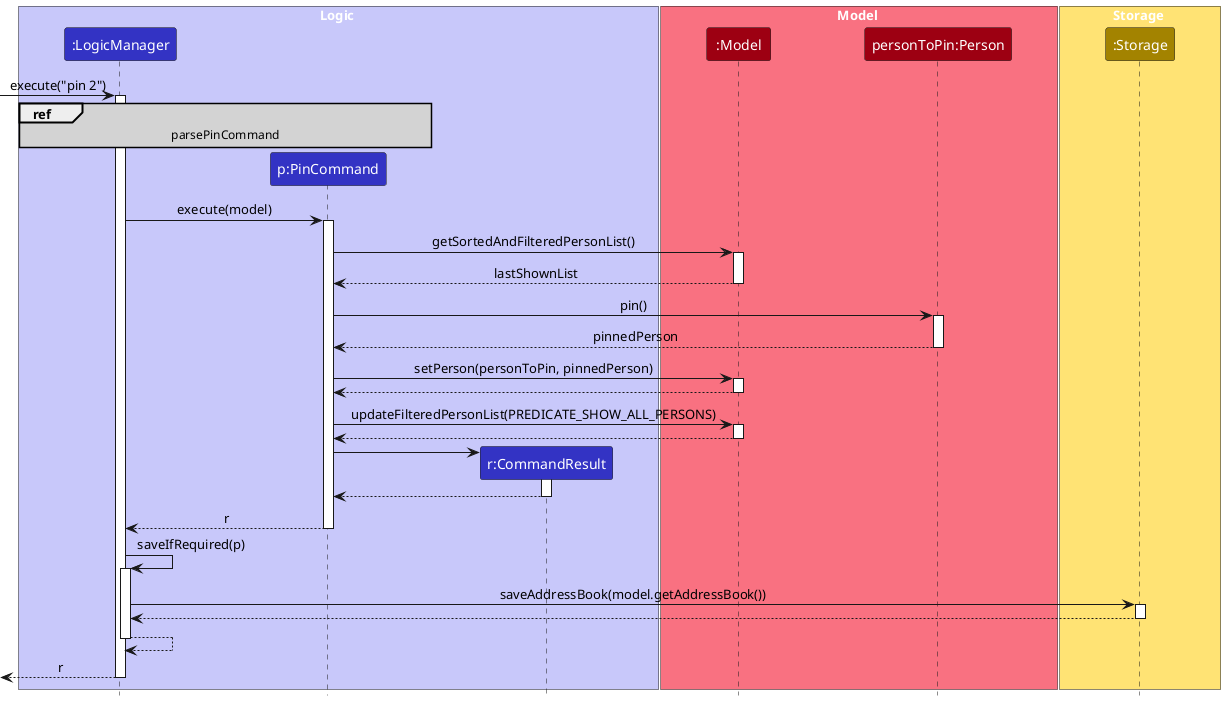 Unpin command follows a similar sequence, replacing
 PinCommand with UnpinCommand, and pin() with unpin().
- Each contact has an additional field indicating whether it is pinned, along with a timestamp representing when it was pinned.
- When the list is displayed, a sorting mechanism ensures that all pinned contacts are moved to the top, preserving the order of all other entries.
- The pin and unpin commands update the relevant contact and trigger a list refresh to reflect the new state immediately.
- The UI displays a visual indicator (such as a pin icon) beside pinned contacts to distinguish them clearly from unpinned ones.
Example Scenarios
- User pins a contact: The contact immediately appears at the top of the list, along with other pinned contacts.
- User unpins a contact: The contact moves back to its regular position according to the active sort order.
- User applies a name sort: Contacts are sorted alphabetically, but pinned contacts remain above the rest.
- User exits and restarts the application: Previously pinned contacts remain pinned as their state is saved in storage.
Find persons by name or tag
Overview
The find command helps user quickly locate specific contacts by searching for keywords in their names or tags. It
matches any contact where at least one word in the name or tag begins with a given keyword, making it easy
to filter a large address book for relevant entries.
Rationale
As the address books grows, it’s common to search for people based on partial names, initials, or tags (like
project or family). Rather than scrolling and scanning, users can use the find command to instantly filter the
list by starting letters or words.
Design Considerations
- Word-based matching: The search checks every word in the name or tag: if any word begins with a keyword, that contact is returned.
- Multiple keywords: When multiple keywords are provided, a contact is included in the results if any of the keywords matches the beginning of any word in the contacts’s name or tag (an OR search).
- Case-insensitive: The matching ignores letter case for convenience.
-
Prefix flags: Use
n\for names ort\for tags. If both prefixes are provided, only the first prefix and its keywords are used. - Sorting: The results are displayed with index numbers for easy follow-up actions.
Implementation Details
- Each name or tag is split into words and checked against all supplied keywords.
- The search logic determines whether to search names or tags based on the first prefix entered (
n\for names ort\for tags). Only keywords following this prefix are considered, additional prefixes are ignored. - Matches are shown as a numbered list, allowing for follow-up actions like editing or pinning.
- The command is compatible with all display sorting options: found contacts are listed in the current sorting mode.
Example Scenarios
-
Find contacts by given name:
find n\jamesreturns any contact whose name has a word starting withjames, likeJames HoorJohn jameson. -
Find by tag:
find t\friendlists all contacts tagged with a word starting with “friend” -
Multiple keywords:
find n\Alex Annfinds any contact whose name contains a word starting with “Alex” or “Ann”. -
Mixed prefixes:
find n\Amy t\classmatesearches only for name matches with “Amy”, ignoring the tag prefix.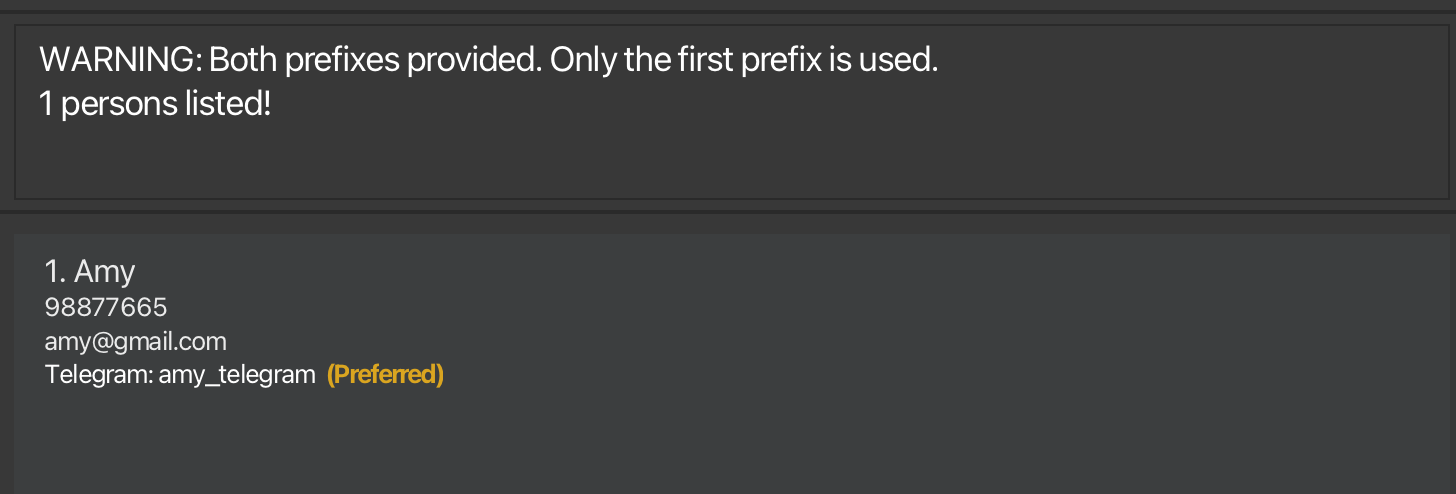
Autocompletion
Overview
The autocomplete feature contributes to the proposed speed of DevBooks. It provides users with real-time suggestions
on which commands to input, improving the user experience by showing users possible commands in-place and allowing
them to fill it with <TAB> when satisfied.
Rationale
One of the key goals of DevBooks is speed. Our target users are CS students who are (or will be!) accustomed to command line interfaces. As such, we want to provide common features and functionality found in CLIs like bash. Therefore, autocomplete was implemented with a similar control scheme to most CLIs.
Design Considerations
-
Familiarity: The functionality should be familiar for users. Therefore, we used
<TAB>as the input to autocomplete. - Speed: Autocomplete suggestions should be fast and have no noticeable delay. This is why a Trie data structure is used for suggestions.
-
User Experience: The text that is autocompleted should be obvious to the user before even pressing
<TAB>. This is why DevBooks shows the text that would be autocompleted in-place as the user types.
Implementation Details
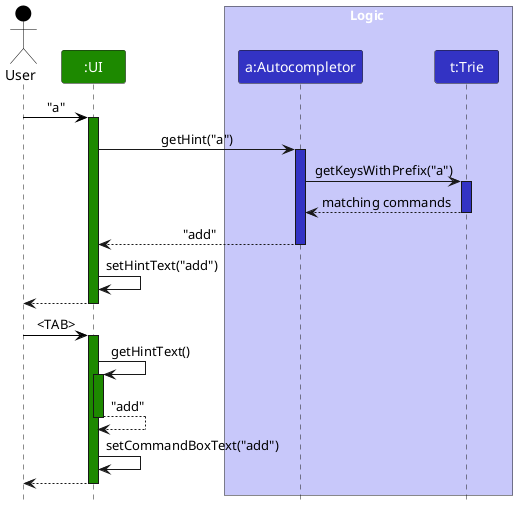
The general flow of autocompletion is shown above.
Other notes:
- The UI component holds a reference to an Autocompletor object, which when created populates a
Triewith command words obtained from theCommandRegistry - Pressing
<TAB>updates theCommandBoxwith the hint text that is currently being shown to the user.
Note that another call to theAutocompletoris not made, to prevent situations where the autocompleted text does not match with the hint that is shown to the user. - The Trie is adapted from Princeton’s TrieST implementation, and contains a subset of features. For more information on how Tries work, see here.
Command History
Overview
Similar to autocomplete, the command history feature intends to speed up the use of DevBooks. It allows users to access the 15 latest successful commands that they have inputted by using the arrow keys.
Design Considerations
- Familiarity: Arrow keys are a common way to access command history in CLIs.
-
User Experience: Only saves successful commands to prevent filling history with irrelevant data.
DevBooks leaves inputs as-is on failed commands. This allows users to edit their input, preventing the need for saving failed commands.
Implementation Details
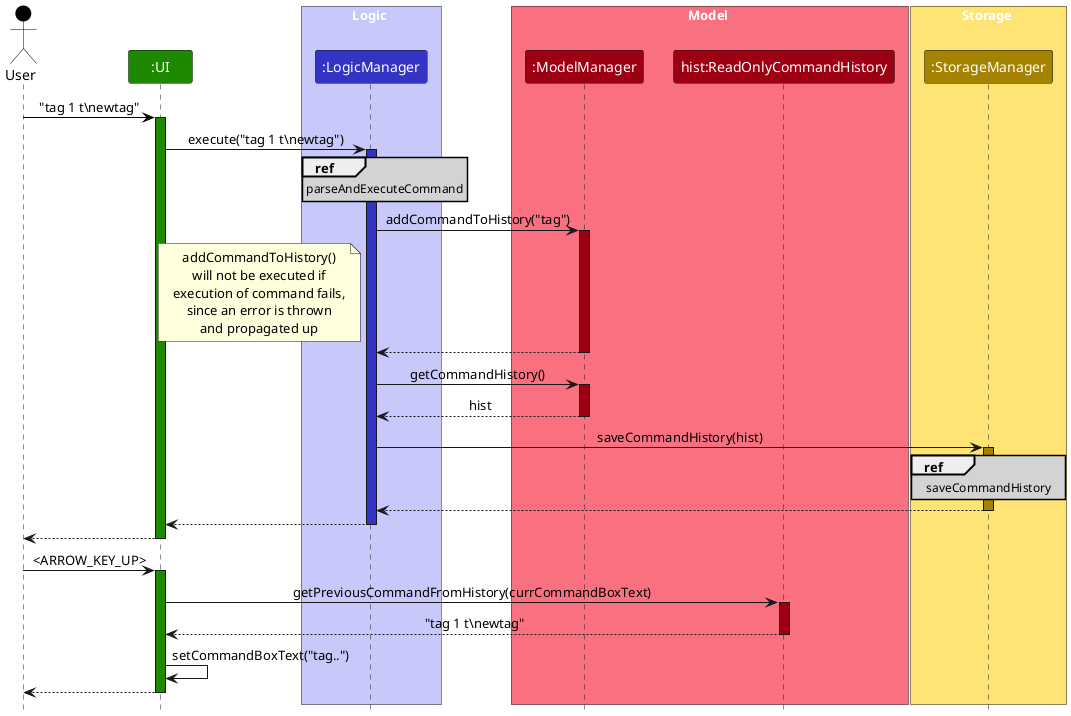
The general flow of saving and using command history is shown above.
Other notes:
- The
ReadOnlyCommandHistoryis exposed to logic via theModelManager. However, the UI holds a direct reference toReadOnlyCommandHistory.
This was done so as to maintain the low level of coupling that UI has to other components. In the event that UI becomes more dependent on model, consider passing the ModelManager to UI and using the manager to interface with the model. -
ReadOnlyCommandHistoryis passed into the UI manager via the constructor called inMainApp.java, similar to how the other architecture component managers are passed. This allows the UI to maintain a safe, updated, read-only view of the CommandHistory. - Obtaining the previous command in the history requires a string parameter, the current text in the command box. This is so that the command being typed by the user can be re-attained by scrolling back down, like in other CLIs.
- The
CommandHistoryis saved to disk in a newline-delimited manner. This is a simple format that is easy to encode and decode. It fits our requirements, since commands are strictly one line only.
Launch Communication Mode
Overview
The launch command helps users launch the selected communication for the specified contact. It will attempt to first
use an Operating System specific command to launch the browser. If that fails, it will then resort to the Java Desktop API
as a fallback operation. Finally, it will display a success/failure message based on the result of the launch operation.
Rationale
This feature adds significant value to DevBooks by streamlining the user’s workflows by reducing context switching. Instead of manually copying and pasting contact information such as telegram handles or GitHub usernames into external browsers, users can instantly launch the appropriate communication channel directly from within the app.
Design Considerations
-
Operating System Specific Commands: As not all operating systems support Java’s Desktop API library, when launching, the application will first attempt to use system specific commands to attempt to launch the specific communication mode through the web browser. This ensures that, even when using a device without the support the Java’s Desktop API library, that users are still able to use this feature.
-
Cross-Platform Compatibility: Different platforms (Windows, macOS, Linux) may require distinct command syntaxes or launch behaviors. For instance,
startis used on Windows,openon macOS, andxdg-openon most Linux distributions. The command selection logic abstracts these differences away, allowing a single unified LaunchCommand interface to function consistently across platforms. -
Fallback launch mechanism: This ensures that if operating system–specific commands fail (for example, due to missing environment variables, restricted permissions, or unsupported shells), the application will attempt a secondary launch strategy using Java’s built-in
DesktopAPI. If this also fails, the application will gracefully inform the user of the issue instead of crashing. This layered fallback mechanism enhances robustness and user experience by preventing silent failures. -
Browser Specific Implementation: The launch command only allows launches of browsers (i.e. no use of system specific clients). This ensures that, during testing, even without internet connection, users can still verify the URL of the web page for confirmation if the launch command has worked successfully or not.
Implementation Details
-
Util Classes:
-
ApplicationLinkLauncher: encapsulates all logic related to preparing the links such that it will be ready to be launched by theDesktopApiclass. -
ApplicationLinkResult: Stores the status and resulting message of the launched application. It will be used to inform the user of the success/failure of the operation. -
ApplicationType: Enumeration of all the different types of application types that DevBooks can launch. -
DesktopApi: Supports cross-platform Launching by first attempting to launch the using system specific commands, before using Java’s Desktop API as a fallback. This class is credited in the acknowledgement section to the original creator of the code.
-
-
GUI enabled ability to launch:
- The GUI components (
PersonCard&MainWindow) are integrated with clickable hyperlinks or buttons that trigger theLaunchCommand. When the user interacts with these elements, the application retrieves the associated contact detail and calls the relevantApplicationLinkLaunchermethod.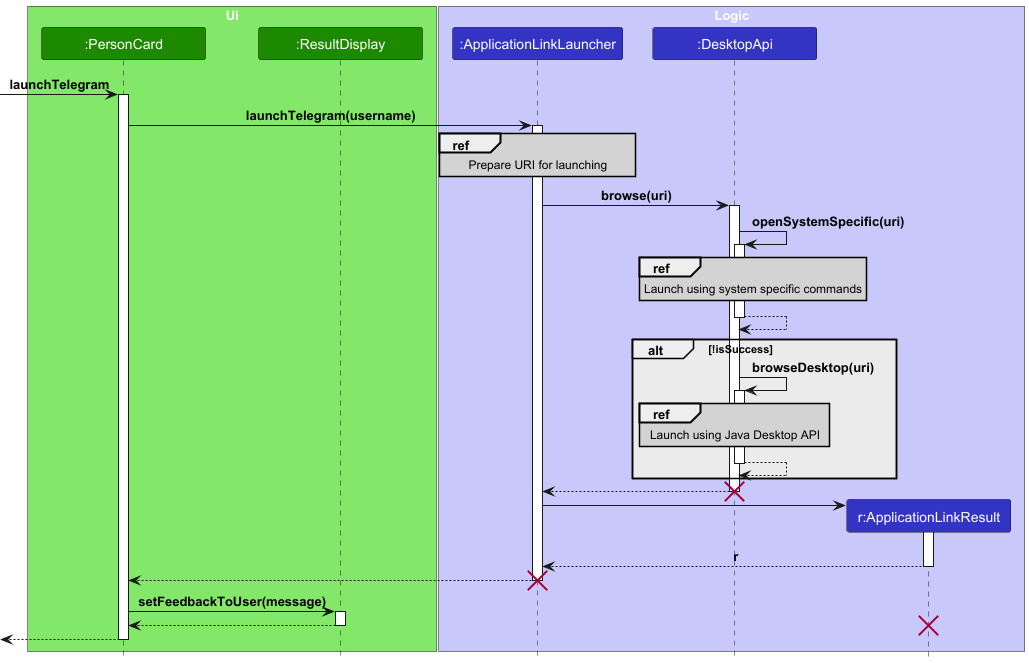
- The GUI components (
Example Scenarios
-
Launch Telegram for first Person in displayed list:
launch 1 -l- DevBooks will attempt to launch a browser with the URL in the format formatted
https://t.me/HANDLE(i.e. the specific send message to a Telegram user URL)
- DevBooks will attempt to launch a browser with the URL in the format formatted
-
Launch GitHub for second Person in displayed list:
launch 2 -g- DevBooks will attempt to launch a browser with the URL in the format formatted
https://github.com/USERNAME(i.e. default GitHub page of the specified username)
- DevBooks will attempt to launch a browser with the URL in the format formatted
-
Launch UserGuide: Press the F1 key
- DevBooks will attempt to launch a browser with the URL in the format formatted
https://ay2526s1-cs2103-f12-2.github.io/tp/UserGuide.html(i.e. The web page of DevBook’s user guide)
- DevBooks will attempt to launch a browser with the URL in the format formatted
-
Note: Kindly check if the URL is correct when evaluating this feature
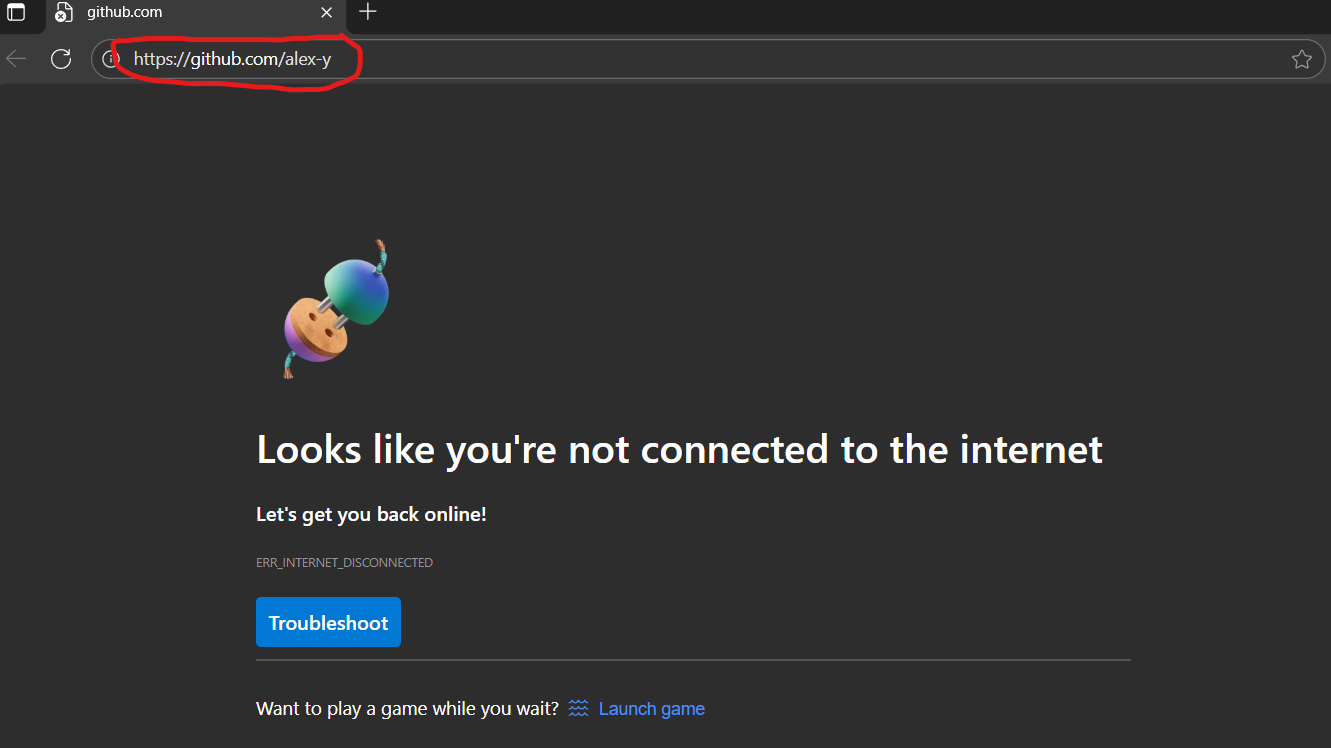
Documentation, logging, testing, configuration, dev-ops
Appendix: Requirements
Product scope
Target user profile: NUS School of Computing Students
- He is a student in SOC
- He likes things to be fast and efficient
- Need to find connections
- Often needs to find students taking the same module for group work
- Often need to contact groupmates
- Loves using Telegram for communication
Value proposition: DevBooks provides fast digital access to students in NUS SOC, making it easier to contact any student using their preferred mode of communication. Allow students to find project mates from the same project group easily and view the development profile of their contact.
User stories
Priorities: High (must have) - * * *, Medium (nice to have) - * *, Low (unlikely to have) - *
| Priority | As a … | I want to … | So that I can… |
|---|---|---|---|
* * * |
As a beginner user | I want to add a contact | so that I can retrieve it when I want |
* * * |
As a beginner user | I want to add a phone number to a contact | so that I can easily message or call them when I need it |
* * * |
As a beginner user | I want to tag my contacts | so that I can easily group my contacts |
* * * |
As a beginner user | I want to list out all the contacts within my contact book | so that I can get an overview of everyone I’ve added so far |
* * * |
As a beginner user | I want to delete a contact | so that I can declutter my contacts list if necessary |
* * * |
As a student | I want to search for a contact by name | so that I can quickly find their contact details |
* * * |
As a beginner user | I want to look for a list of available commands that I can use | so that I can know what commands I can use without memorizing |
* * |
As an intermediate user | I want to access the GitHub page of a contact | so that I can easily view their user activity and repos |
* * |
As a user | I want to export my contacts to a CSV | so that I don’t lose my contacts if the device fails. |
* * |
As an intermediate user | I want to see hint text of what command would be auto-completed if I press “Tab” | so that I have visual feedback before I autocomplete a command |
* * |
As a user | I want to launch my Telegram chat with the contact person through the app | so that I can start chatting with my contacts on Telegram quickly |
* * |
As an intermediate user | I want to access my command history through arrow keys | so that I can execute repeated operations quickly |
* * |
As a beginner user | I want to pin my contacts to the top | so that I can easily access them |
* * |
As a beginner user | I want to unpin my contacts from the pinned list | so that I can remove contacts that I no longer access frequently |
* * |
As an intermediate user | I want to press “Tab” to auto-complete the command that I am typing out | so that I can quickly finish the command that I am typing. |
* * |
As a beginner user | I want to be able to rename my tags | so that I can mass-edit contacts with the same tag |
* * |
As a beginner user | I want to delete a tag | so that I can remove irrelevant tags from my contacts |
* * |
As an impatient user | I want the app to load 500 contacts within 2 seconds | so that I do not need to wait too long to access my contacts |
* * |
As a beginner user | I want to set a preferred mode of communication to a contact | so that I can reach them at their preferred platform when I want to |
* * |
As a user | I want to quickly scroll through using arrow keys | so that I can find someone without typing. |
* * |
As an intermediate user | I want to add all contact information in just one line | so that I don’t need to do so manually using multiple updates |
* * |
As a beginner user | I want to see the recently accessed contacts | so that I can know who I recently contacted |
* * |
As a beginner user | I want to add an email address to a contact | so that I can easily email them when I need it |
* * |
As an advanced user | I want to be able to add multiple tags to a contact | so that I can find my groups quickly. |
* * |
As a beginner user | I want to add a Telegram handle to a contact | so that I can easily access my contact’s Telegram when I need it |
* * |
As a beginner user | I want to update a contact | so that I can update the details of my contacts when they change |
* * |
As a beginner user | I want to delete a tag on a contact | so that I can remove outdated tags |
* * |
As a beginner user | I want to get more details about each command and flag | so that I am able to learn how to properly use each command/flag |
* * |
As a beginner user | I want to add the GitHub handle to a contact | so that I can easily access their GitHub page in the future |
* * |
As a user | I want to view the list of contacts in alphabetical order | so that I can view the list in my preferred order |
* * |
As a user | I want to view the list of contacts by order of most recently added | so that I can view the list in my preferred order |
* * |
As a beginner user | I want to search for a contact by tag | so that I can find my contact(s) more easily |
* |
As an advanced user | I want to use DevBooks inside of my command console | so that I don’t need to open the application to perform an operation |
* |
As a user | I want to be able to group contacts by teams | so that I can access all members in one place. |
* |
As a user | I want to import a list of contacts from a CSV | so that I can quickly add contacts to another device. |
* |
As an advanced user | I want to view a list of my shortcuts | so that I can see an overview of my customizations |
* |
As an advanced user | I want to create my own shortcuts | so that I can quickly type out long commands instantly |
* |
As an intermediate user | I want to revert the last command | so that I can undo any mistakes |
* |
As a beginner user | I want to go through a tutorial of the app | so that I can familiarize myself with how to use the app. |
* |
As a beginner user | I want to read the documentation | so that I can get started with using the app |
* |
As a beginner user | I want to import existing contacts from a .vcf file | so that I do not need to re-type all of my existing contacts |
* |
As a user | I want to delete contacts by a date/time query | so that my address book stays clean. |
* |
As an aesthetic-minded individual | I want to customize the theme of the application | so that it’s more personal to me |
Use cases
(For all use cases below, the System is the DevBooks and the Actor is the user, unless specified otherwise)
Use case: UC01 - Add Contact
MSS
- User add contact with required contact information
- DevBooks saves contact and show success message
-
DevBooks shows the updated contact list
Use case ends.
Extensions
-
1a. User add contact with invalid contact information
- 1a1. DevBooks shows an error message
-
1a2. User input new add command with contact information
Steps 1a1-1a2 are repeated until the new contact information entered are correct.
Use case resumes from step 2.
-
1b. Duplicated contact information found
- 1b1. DevBooks shows an error message
-
1b2. User input new add command with contact information
Steps 1b1-1b2 are repeated until the new contact information does not duplicate with existing contacts.
Use case resumes from step 2.
Use case: UC02 - Edit Contact
MSS
- User edits contact in list
- DevBooks detects correct data in the entered data
-
DevBooks updates the contact and displays the newly updated contact
Use case ends.
Extensions
-
1a. DevBooks detects an error in the entered data.
- 1a1. DevBooks prompts the user for the correct data.
-
1a2. Beginner user enters new data.
Steps 1a1-1a2 are repeated until the data entered are correct.
Use case resumes from step 2.
Use case: UC03 - Delete Contact
MSS
- User inputs delete command with desired information to delete
- DevBooks shows a confirmation prompt
- User confirms intent to delete
- DevBooks deletes the contact Use case ends.
Extensions
-
1a. DevBooks does not find a corresponding user to delete
-
1a1. DevBooks shows an error message
Use case ends.
-
-
3a. User inputs an invalid confirmation prompt
- 3a1. DevBooks shows an error message
-
3a2. DevBooks re-prompts for confirmation
Steps 3a1-3a2 are repeated until the data entered are correct.
Use case resumes from step 4.
Use case: UC04 – Show list of commands
MSS
- User inputs a help command to look up all commands available
- DevBooks lists out all the commands with its uses
- User chooses specific help commands to look up details of one specific command.
-
DevBooks shows the specific instructions and guide on how to use that command
Use case ends.
Extensions
-
3a. User did not select any commands to view command details
Use case ends.
-
3b. User inputs a commands that does not exist in list of commands
- 3b1. DevBooks shows an error message
- 3b2. DevBooks prompts user to select available command
- 3b3. User selects a command from list of available command
Steps 3b1–3b3 are repeated until available command is selected.
Use case resumes from step 4.
Use case: UC05 – Find Contact by Name or Tag
MSS
- User inputs a find command with keyword(s) to search
- DevBooks validates the input and searches for matching contacts
-
DevBooks displays the matching contacts
Use case ends.
Extensions
-
2a. User inputs an invalid search format
-
2a1. DevBooks shows an error message
Use case ends.
-
Use case: UC06 - Pin Contact
MSS
- User inputs the pin command with a valid contact index
- DevBooks marks the contact as pinned and updates its position in the contact list
-
DevBooks shows a success message and displays the updated list with pinned contact(s) at the top
Use case ends.
Extensions
-
1a. User inputs pin command with an invalid contact index
- 1a1. DevBooks shows an error message
-
1a2. User inputs a new pin command with a valid contact index
Steps 1a1-1a2 are repeated until a valid contact index is entered. Use case resumes from step 2.
-
1b. Selected contact is already pinned
- 1b1. DevBooks shows a message indicating that the contact is already pinned Use case ends.
Use case: UC07 - Unpin Contact
MSS
- User inputs the unpin command with a valid contact index
- DevBooks removes the pin from the selected contact and updates the contact list order
-
DevBooks shows a success message and displays the updated list
Use case ends.
Extensions
-
1a. User inputs unpin command with an invalid contact index
- 1a1. DevBooks shows an error message
-
1a2. User inputs a new unpin command with a valid contact index
Steps 1a1-1a2 are repeated until a valid contact index is entered. Use case resumes from step 2.
-
1b. Selected contact is not pinned
- 1b1. DevBooks shows a message indicating that the contact is not pinned Use case ends.
Use case: UC08 - Delete Tag
MSS
- User inputs the delete tag command with one or more tags to delete
- DevBooks deletes all instances of the found tags from every contact
- DevBooks shows a success message indicating which tags were deleted
-
DevBooks displays the updated contact list
Use case ends.
Extensions
-
1a. User did not specify any tags to delete
- 1a1. DevBooks shows an error message indicating that no target tag was provided Use case ends.
-
1b. None of the specified tags can be found in any contact
- 1b1. DevBooks shows an error message indicating that no tags were found for deletion Use case ends.
-
1c. Some tags are found while others are not
- 1c1. DevBooks deletes all found tags
- 1c2. DevBooks shows a success message for tags deleted and a warning message for tags not found Use case resumes from step 4.
Non-Functional Requirements
- Should work on any mainstream OS as long as it has Java
17or above installed. - Should be able to hold up to 500 persons without a noticeable sluggishness in performance for typical usage.
- A user with above average typing speed for regular English text (i.e. not code, not system admin commands) should be able to accomplish most of the tasks faster using commands than using the mouse.
- Should only be used by a single user (i.e. not a multi-user product).
- Should store data locally and in a human editable text file.
- Should not use a DBMS to store data.
- Should work without requiring an installer.
- Should not depend on a specific remote server.
- Should be packaged into a single JAR file.
- Should be able to load 500 contacts within 2 seconds.
- Should be able to comfortably use the application without using a mouse.
- Should be less than 20 Megabytes.
- Should execute any command except
launchin less than 1 second.
Glossary
- Autocomplete: A feature that suggests or completes user commands automatically
- CLI (command line interface): A text-based interface where users type commands to interact with the system.
- Command History: A feature that allows users to navigate through previously enter commands using the arrow key. Command history is saved and restored across sessions.
- CSV (Comma-Separated Values): A file format that stores tabular data in plain text, where each line represents a record and fields are separated by commas. Used to export contacts in a structured way.
- Development profile: A user’s GitHub profile used to store, manage, and showcase software development projects.
- Digital access: The ability to access DevBooks and retrieve information without needing any internet connection
- Field: A specific category of information within a contact (Name, Phone, Email, Telegram, GitHub, Preferred mode of communication, Tag)
-
Flag: An option that changes how a command behaves. (e.g.
-a->list -alists contacts alphabetically) -
Insert Mode: The default mode in the application where users can type commands normally in the command box.
Switch to insert mode by pressing
i - Keyboard Navigation: The ability to interact with the application using only keyboard keys instead of a mouse or touch input. Includes navigating lists, scrolling and switching modes.
- Mainstream OS: Windows, Linux, Unix, MacOS
- NUS SOC: National University of Singapore, School of Computing
- Preferred Mode of communication: Telegram, Email or Phone
-
Prefix: A marker used to specify a particular field or value in a command. (e.g.
n\for names,p\for phone,t\for tag, etc). - Private contact detail: A contact detail that is not meant to be shared with others
-
Scroll Mode: A mode that disables text input and allow users to navigate through the interface using keyboard
keys such as
j/k. Enter scroll mode by pressing<esc>. - Tag: A Label assigned to contacts for easy grouping and searching
- Vim-like Modal Input: An input system inspired by the Vim text editor, where different modes (e.g. input mode and scroll mode) change the behaviour of keyboard keys.
Appendix: Instructions for manual testing
Given below are instructions to test the app manually.
Note: These instructions only provide a starting point for testers to work on;
testers are expected to do more exploratory testing.
Launch and shutdown
-
Initial launch
-
Download the jar file and copy into an empty folder
-
Double-click the jar file Expected: Shows the GUI with a set of sample contacts. The window size may not be optimal.
-
-
Saving window preferences
-
Resize the window to an optimum size. Move the window to a different location. Close the window.
-
Re-launch the app by double-clicking the jar file.
Expected: The most recent window size and location is retained.
-
-
Retaining data across launches
-
Add a contact to the contact book. Close the application.
-
Launch the application. Expected: The new contact should be in the application. A folder
data/should be created where the .jar file is stored.
-
Adding a person
-
Adding a person with required fields only
- Test case:
add n\John Doe p\98765432
Expected: The contactJohn Doeis added to the contact list. The details of the new contact are shown in the Result Display.
- Test case:
-
Adding a person with all fields
- Test case:
add n\Jane Smith p\91234567 e\jane@example.com l\janesmith g\jane-s pm\telegram t\friend t\colleague
Expected: The contactJane Smithis added to the contact list with all details (Email, Telegram, GitHub, Preferred Mode, and two tags) correctly stored. The details are shown in the Result Display.
- Test case:
-
Attempting to add a person with missing required fields
-
Test case:
add n\Incomplete Contact
Expected: The message “Invalid command format!” is shown to the user. Extra information on how to useaddis shown in the Result Display. -
Test case:
add p\99988877
Expected: The message “Invalid command format!” is shown to the user. Extra information on how to useaddis shown in the Result Display.
-
-
Attempting to add a duplicate person
- Prerequisites: A person named
John Doewith phone98765432already exists (added in step 1). - Test case:
add n\John Doe p\98765432
Expected: The message “This person already exists in the address book.” is shown to the user. The contact list remains unchanged.
- Prerequisites: A person named
-
Other incorrect add commands to try
-
Test case:
add n\Test p\notaphonenumber
Expected: An error message “Phone numbers should only contain numbers, and it should be between 3 and 17 digits long” is shown indicating the phone number format is invalid. -
Test case:
add n\Test p\98765432 e\notanemail
Expected: An error message is shown indicating the email format is invalid.
-
Deleting a person
-
Deleting a person while all persons are being shown
-
Prerequisites: List all persons using the
listcommand. Multiple persons in the list. -
Test case:
delete 1
Expected: A confirmation prompt is shown in the status bar before the contact is deleted. The to-be-deleted contact is shown in the status message. -
Test case:
delete 1followed byy
Expected: Afteryis input into the confirmation prompt, The details of the deleted contact is shown. The contact is no longer shown in the list. -
Test case:
delete dingus
Expected: The message “Invalid command format!” is shown to the user. Extra information on how to use delete is shown in the Result Display. -
Other incorrect delete commands to try:
delete,delete x,...(where x is larger than the list size)
Expected: Similar to previous.
-
Pinning a person
-
Pinning a person while all persons are being shown
-
Prerequisites: List all persons using the
listcommand. Multiple persons in the list. -
Test case:
pin 4
Expected: The details of the pinned contact is shown in the Result Display. The contact is moved to the top of the list with pin icon visible. -
Test case:
pin John
Expected: The message “Invalid command format!” is shown to the user. Extra information on how to use pin is shown in the Result Display. -
Test case:
pin 3followed bypin 1to pin an already pinned contact
Expected: The message “Person is already pinned.” is shown to the user. -
Other incorrect pin commands to try:
pin,pin x,...(where x is larger than the list size)
Expected: Similar to expected in step 3.
-
Unpinning a person
-
Unpinning a person while all persons are being shown
-
Prerequisites: List all persons using the
listcommand. Multiple persons in the list. -
Test case:
unpin 4
Expected: The details of the unpinned contact is shown in the Result Display. The contact is moved back to its original position in the list based on sorting order with pin icon removed. -
Test case:
unpin John
Expected: The message “Invalid command format!” is shown to the user. Extra information on how to use unpin is shown in the Result Display. -
Test case: Ensure that contact of index 3 is not pinned and enter
unpin 3to unpin a not pinned contact
Expected: The message “Person is currently not pinned.” is shown to the user. -
Other incorrect pin commands to try:
unpin,unpin x,...(where x is larger than the list size)
Expected: Similar to expected in step 3.
-
Finding a person
-
Finding a person by name or tag while all persons are being shown
-
Prerequisites: List all persons using the
listcommand. Multiple persons in the list. - Test case:
find n\Alex
Expected: Persons whose names start with “Alex” are listed (e.g. Alex Yeoh). Details of the listed contacts shown in the result display box. Status message shows the number of persons found. - Test case:
find t\friend
Expected: Persons with the tag “friend” are listed. Details of the listed contacts shown in the result display box. Status message shows the number of persons found. - Test case:
find n\a
Expected: All persons whose names start with “A” are listed. The search is case-insensitive (e.g. “a” matches “Alex”). - Test case:
find
Expected: No person is listed. Error details shown in the result display box. - Other incorrect find commands to try:
find,find n\,...
Expected: Similar to previous.
-
Saving data
-
Dealing with missing data files
-
Ensure that in the directory that DevBooks is being run, a
datafolder is not present. -
Run the application.
-
Perform a simple add command
add n\New p\91223124
Expected:data/folder is created, along with.command_historyandaddressbook.json
-
-
Dealing with corrupted data files
-
Add a contact in the AddressBook to force a save to
data/addressbook.json:add n\Test p\912312311 -
In an editor, edit the
data/addressbook.jsonfile. Corrupt the data by inputting a invalid value in a field. -
Test case:
invalidGH%20__!$in any contact’sGitHubfield
Expected: A warning message is shown in the bottom status bar indicating that the file failed to read.
-
Listing all Contacts
- Listing all contacts in default order (first to last)
- Prerequisites: Contact list is not already in default order
- Test case:
list
Expected Result Display:Listed all personsExpected Result: Contacts should be list in default order. Pin priority takes precedences.
- List all contacts in alphabetical order
- Prerequisites: Contact list is not already in alphabetical order
- Test case:
list -a
Expected Result Display:Listed all persons in alphabetical orderExpected Result: Contacts should be list in alphabetical order. Pin priority takes precedences.
- List all contacts in recent order (latest to earliest)
- Prerequisites: Contact list is not already in recent order
- Test case:
list -r
Expected Result Display:Listed all persons in recent orderExpected Result: Contacts should be list in recent order (latest to earliest). Pin priority takes precedences.
Editing a single Contact
- Edit First Person’s in the displayed list phone no. and email.
- Prerequisites: There is at least 1 person in the displayed list
-
edit 1 p\91234567 e\johndoe@example.com
Expected Result Display:Edited Person: Bernice Yu; Phone: 91234567; Email: johndoe@example.com; Telegram: berinceyu88; Github: berniceyu88; Preferred mode: phone; Tags: [colleagues][friends]Expected Result: Edits the phone number and email address of the 1st person to be
91234567andjohndoe@example.comrespectively.
- Edit Second Person in the displayed list, (NAME, ADD TAG, REMOVE TAG, CLEAR_TELEGRAM)
- Prerequisites: There is at least 2 person in the displayed list and no other person with the name “Betsy Crower”
- Test:
edit 2 n\Betsy Crower t\CS2103 t\CS2100 r\CS1101S l\
Expected Result Display:Edited Person: Betsy Crower; Phone: 91093122; Telegram: ; Github: BestyCrower; Tags: [CS2100][CS2103]Expected Result: Edits the name of the 2nd person to be
Betsy Crower, adds the tagCS2103&CS2100, removes the tagCS1101Sand clears the Telegram field.
Launching Communication Mode
- Launch First Person’s Email.
-
Prerequisites: The first person in the displayed list has a Telegram Handle
-
Test:
launch 1 -l
Expected Result Display:Launched TELEGRAM successfully. Note: You can only launch Telegram links from the browser if you have the Telegram application installed on your device.Expected Result (regardless of Internet Access):
- Verify that a browser opens with the URL formatted
https://t.me/HANDLEwhereby handle should be the specified contact’s Telegram handle, - & Result display show the success message above.
- Verify that a browser opens with the URL formatted
-
- Launch Second Person’s without the specified communication mode.
-
Prerequisites: The second person in the displayed list does NOT have a Telegram handle
-
Test:
launch 1 -l
Expected Result Display:Person Name This person does not have a Telegram handle.Expected Result:
- Result display show the message of the contact’s name followed by the error message above
-
- Launch Third Person’s GitHub.
-
Prerequisites: The third person in the displayed list has a GitHub username and user has access to pointing device that can interact with the GUI.
-
Test: Click on the GitHub username of the third person in the list
Expected Result Display:Launched GitHub successfully. Note: You can only launch Telegram links from the browser if you have the Telegram application installed on your device.Expected Result (regardless of Internet Access):
- Verify that a browser opens with the URL formatted
https://github.com/USERNAMEwhereby username should be the specified contact’s GitHub username, - & Result display shows the success message above.
- Verify that a browser opens with the URL formatted
-
- Launching the User Guide.
- Test: Press the
F1key
Expected Result Display:Launched USERGUIDE successfully. Note: You can only launch Telegram links from the browser if you have the Telegram application installed on your device.Expected Result:
- Verify that a browser opens with the specific URL
https://ay2526s1-cs2103-f12-2.github.io/tp/UserGuide.html, - and Result display show the success message above as well as a caveat about launching Telegram
- Verify that a browser opens with the specific URL
- Test: Press the
Renaming/Deleting the Tags for Multiple Users
- Renaming Tags for all Users
-
Prerequisites: The displayed list has at least 1 person with the target tag
-
Test:
tag -r t\CS1101 r\CS2103
Expected Result Display:Renamed tag [CS1101] to [CS2103] for 2 person(s).Expected Result: Renames the existing tag
CS1101for all contacts that has it with the new tagCS2103and displays the number of person updated
-
- Renaming Tags for all Users
-
Prerequisites: The displayed list has NO person with the target tag
-
Test:
tag -r t\CS1101 r\CS2103
Expected Result Display:No persons found with tag: [[CS1101]]Expected Result: Error Message displaying that No Person is found using the target tag.
-
- Deleting Tags for all Users (Given the target tag does exist)
-
Prerequisites: The displayed list has at least 1 person with the target tags
-
Test:
tag -d t\CS1101 t\CS2103
Expected Result Display:Deleted tags: [[CS1101], [CS2103]]Expected Output deletes
CS1101&CS2103tag for all contacts with the tag.
-
Appendix: Effort
Overall, our effort placed into the project as a group is higher-than-average. As of the Feature Freeze, DevBooks is among the top 20 groups in terms of LoCs added.
While core functionality remains similar, we have made tweaks and added commands targeted at our users, NUS CS students.
The following section details a person-by-person breakdown on key challenges we’ve faced and successes we’ve achieved.
Wen Cong
My efforts focused on enhancing the contact model and implementing new management features. I enhanced existing contacts to support new fields like Telegram and Github, which was time-consuming as it required updates across multiple commands and the model.
I also implemented new features, including Mass Delete Tags and Pin/Unpin contacts. The most significant challenge was developing the sorting algorithm for the Pin/Unpin feature, which needed to display pinned contacts at the top while preserving the existing sort order for all unpinned contacts.
- LoCs added so far: 3097
- Estimated time spent: 60+ hours
Arjun
I’ve successfully transformed user interaction with DevBooks by making it keyboard-centric, incorporating features like autocomplete and command history for improved speed. Implementing autocomplete was straightforward with a trie addition, while integrating deletion confirmation required significant design deliberation and adherence to best practices, supported by UML diagrams. However, I faced challenges integrating TestFX into the testing suite, needing to troubleshoot numerous obscure error messages to update the CI effectively.
- LoCs added so far: 2953
- Estimated time spent: 60+ hours
Thaddaeus
My key successes were a mix of enhancing current features while also implementing new features aimed towards streamlining workflows. Features I’ve enhanced/added include: updating edit, sorting list, rename tag, launching of communication mode and introducing Mockito as a test dependency.
The biggest challenge was supporting Linux systems, as not all distributions support Java’s Desktop API. This was addressed by using OS-specific commands first, with Java’s Desktop API as a fallback.
- LoCs added so far: 3096
- Estimated time spent: 60+ hours
Daohang
My key successes were enhancing the help command while also implementing the new export feature. My key challenge faced was when creating the export feature, and figuring out the best way to route and design the control flow of the feature. This was eventually resolved through multiple stages of improving the implementation.
- LoCs added so far: 2958
- Estimated time spent: 50+ hours
Derek
My key successes are in improving the Find command, enabling search by name or tag with more accurate matching, and enhancing the Edit Preferred Mode of Communication, ensuring correct updates, validation, and clear UI highlighting.
For the Edit Preferred Mode of Communication, I worked on ensuring the preferred mode updates correctly based on the user’s available contact options. Setting and validating the available modes was tricky, as it required careful checks to prevent invalid combinations. I also faced challenges in styling, ensuring only the preferred mode text was highlighted in color while keeping the rest consistent, but achieved a clean and clear display in the end.
- LoCs added so far: 1743
- Estimated time spent: 50